
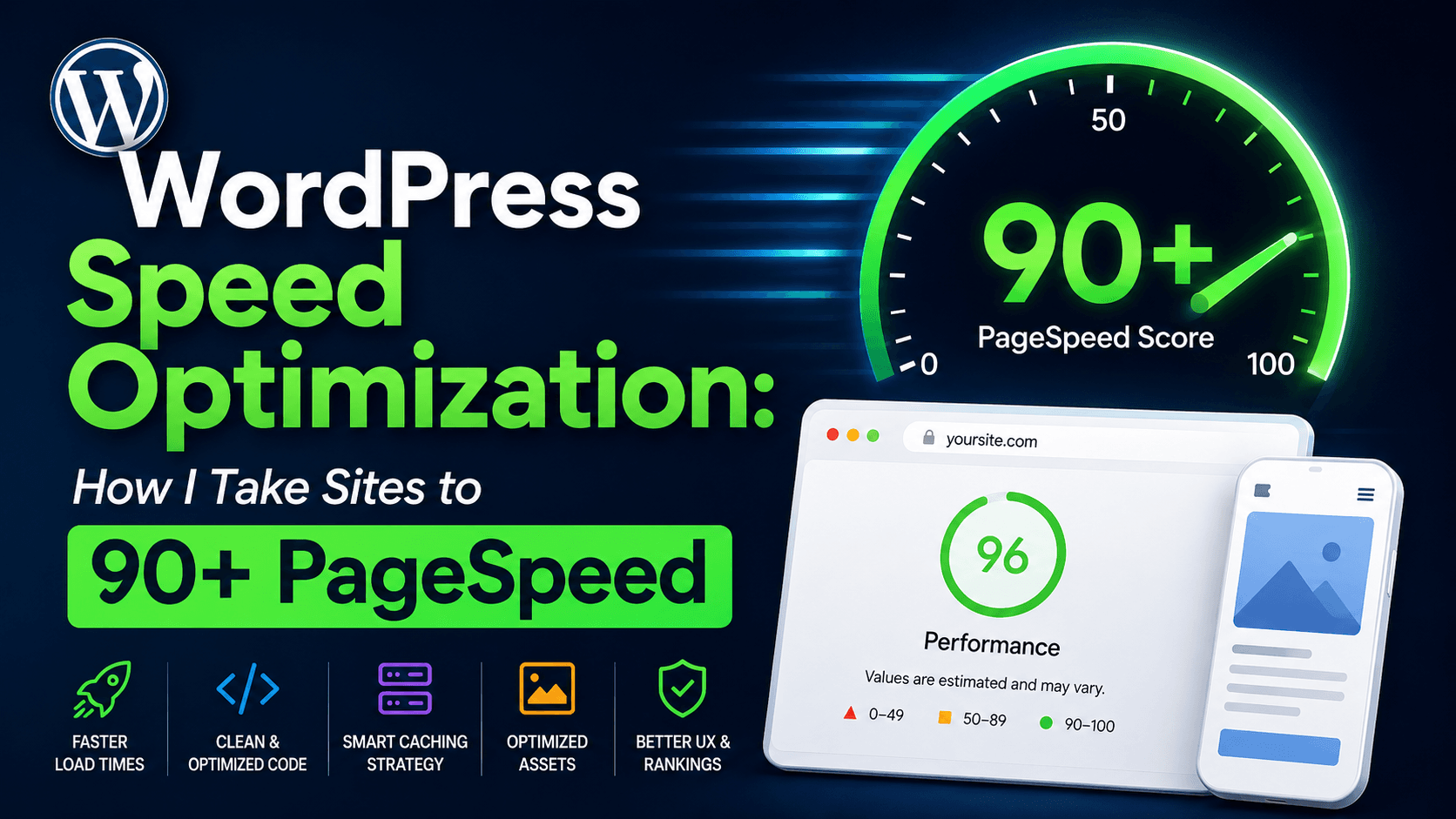

Quick answer: To speed up a WordPress site, fix things in the order that actually moves the numbers — not the order plugins suggest. Start by diagnosing the real bottleneck (usually images or your host), then work through image format and sizing, quality hosting, page + object caching, your render path (defer CSS/JS, preload the LCP image), web fonts, and database bloat. Done right, most business sites go from a 30–50 mobile PageSpeed score to 90+. Below is the exact process I use on client sites.
I optimize WordPress sites for a living. Here's what actually works.
Hey, I'm Salman — I build and optimize WordPress sites for businesses across six countries, and every site I ship targets 90+ on Google PageSpeed. Over 120 builds, I've learned that most "speed up your WordPress site" articles get the order wrong. They hand you a list of 10 plugins and call it done.
The real answer is more boring: image format > caching > render path > everything else. If you fix those four in the right order, you've done 80% of the work before you touch a single "advanced" setting. This guide walks through the full process — the same one I run on paid client work — including the developer-level steps the plugin-vendor blogs skip because they're trying to sell you their plugin.
This is a practitioner's guide, not a vendor pitch. I don't sell a caching plugin, so I'll tell you honestly where the free tools are enough and where paid is worth it.
Why WordPress Speed Matters (the short version)
You already know fast is better, so I'll keep this tight:
- Conversions: Google's own research found that as page load goes from 1s to 3s, the probability of a bounce jumps 32%. Slow pages quietly leak sales.
- SEO: Core Web Vitals are a confirmed Google ranking signal, and page speed feeds directly into them. Faster sites get crawled more and rank more easily.
- Trust: A site that loads instantly feels more professional before a visitor reads a single word. Speed is the first impression.
The point isn't to chase a perfect 100 score for bragging rights. It's to make the site feel instant for real people on real phones. Let's diagnose yours first.
Step 1: Diagnose Before You Optimize
The biggest mistake I see: people install five plugins and hope. You can't fix what you haven't measured. Spend 15 minutes here first — it tells you which of the later steps actually matter for your site.
The tools I actually use to diagnose
- Google PageSpeed Insights — start here. It pulls real-user "field data" (how your actual visitors experience the site) plus a lab test. The field data is what Google uses for rankings, so it's the number that counts.
- GTmetrix or DebugBear — for the request "waterfall." This shows you exactly which file is blocking the load, in what order. It's how you find the one 2MB hero image or the render-blocking font that's wrecking everything.
- Query Monitor (plugin) — the developer's secret weapon. It surfaces slow database queries and which plugin is responsible for them. Most "mystery slowness" is one badly-coded plugin, and this finds it in minutes.
Read the waterfall, not just the score
A PageSpeed score is a symptom. The waterfall is the diagnosis. Look for: a big gap before anything loads (that's a slow host/TTFB), a giant image near the top (that's your LCP problem), or a wall of small CSS/JS files blocking render (that's your render path). Match the symptom to the fix:
| Symptom you see | Likely cause | Where to fix it (in this guide) |
|---|---|---|
| Long delay before anything appears | Slow hosting / high TTFB | Step 3 (Hosting) |
| One huge image loads slowly at the top | Unoptimized LCP image | Step 2 (Images) + Core Web Vitals |
| Layout jumps around as it loads | No image dimensions / late fonts | Core Web Vitals (CLS) |
| Buttons feel laggy when tapped | Heavy JavaScript | Step 5 (Render path) + INP |
| Slow even for repeat visitors | No caching | Step 4 (Caching) |
Step 2: Core Web Vitals — the 2026 framework that actually matters
Most older speed guides are out of date here, so pay attention: in March 2024, Google replaced FID (First Input Delay) with INP (Interaction to Next Paint). If a guide still talks about FID, it hasn't been updated — and neither has its advice. There are three vitals, and each has a clear cause-and-fix.
| Metric | What it measures | Good | Needs work | Poor |
|---|---|---|---|---|
| LCP (Largest Contentful Paint) | How fast the main content (usually the hero image/heading) appears | ≤ 2.5s | 2.5–4s | > 4s |
| INP (Interaction to Next Paint) | How fast the page responds when a user taps or clicks | ≤ 200ms | 200–500ms | > 500ms |
| CLS (Cumulative Layout Shift) | How much the layout jumps around while loading | ≤ 0.1 | 0.1–0.25 | > 0.25 |
Fixing LCP (the one that matters most)
LCP is almost always your hero image or main heading. The fixes, in order: serve the hero in WebP/AVIF, size it correctly (don't load a 2000px image into an 800px slot), preload it so the browser fetches it immediately, and make sure it is not lazy-loaded (lazy-loading the LCP element is the single most common mistake I fix on client sites). Verify in PageSpeed Insights after each change.
Fixing INP (the new one most sites fail)
INP is about JavaScript. When a tap takes 400ms to respond, it's because the main thread is busy running scripts. Fixes: remove unused plugins (every plugin adds JS), defer non-critical JavaScript, and cut heavy third-party scripts (chat widgets, multiple analytics tags, ad scripts). On a typical bloated business site, removing 3–4 unnecessary plugins fixes INP on its own.
Fixing CLS (the easy win)
CLS comes from elements that load without reserved space. Two fixes cover 90% of cases: always set explicit width and height on images, and load fonts with font-display: swap plus a preload so text doesn't reflow when the custom font arrives. Reserve space for ad/embed slots too.
Step 3: Get Hosting Right (TTFB is where speed begins)
No plugin can fix slow hosting. If your server takes 1.5 seconds to send the first byte (TTFB), you've lost the race before the browser draws anything. Cheap shared hosting that crams thousands of sites onto one server is the most common hidden bottleneck I find.
- Aim for TTFB under ~500ms (ideally under 200ms). Check it in the GTmetrix waterfall or PageSpeed.
- Use quality managed or cloud hosting — Cloudways, Kinsta, or a solid VPS. You don't need the most expensive plan; you need a host that isn't overselling.
- Upgrade PHP. Running PHP 8.1+ instead of an old 7.x version can cut server processing time meaningfully — and it's a free, one-click change in most hosting panels. Test on staging first.
- Add object caching (Redis) if your host supports it. For dynamic sites (WooCommerce especially), a Redis object cache stops WordPress from re-running the same database queries on every load. This is a developer-level step the vendor blogs rarely mention.
Step 4: Caching — Done Once, Done Right
Caching saves a ready-made copy of your page so the server doesn't rebuild it from scratch for every visitor. It's the highest-leverage single setting on most sites. You do not need a stack of caching plugins — pick one and configure it properly.
- Page caching — the big one. Serves static HTML to visitors. Built into LiteSpeed Cache (free, if your host runs LiteSpeed) or WP Rocket (paid, the most beginner-friendly).
- Browser caching — tells repeat visitors' browsers to keep static files (logo, CSS) locally. Usually a checkbox in the same plugin.
- Object caching — covered in Step 3; for dynamic/eCommerce sites.
Honest take on plugins: if your host runs LiteSpeed, LiteSpeed Cache is free and excellent — start there before paying for anything. If not, WP Rocket is worth the money for how much it does in one dashboard (caching + minification + lazy load + preload). W3 Total Cache and WP Super Cache are free and capable but fiddlier to set up. There's no need to own more than one.
Step 5: Optimize the Render Path (CSS, JavaScript & Fonts)
This is where the score climbs from "okay" to "fast." The render path is everything the browser must process before it can paint the page. Bloated, render-blocking CSS and JS are what keep most well-hosted sites stuck in the 60s.

- Minify & combine CSS and JS to cut file size and requests (LiteSpeed/WP Rocket do this).
- Defer non-critical JavaScript so it loads after the page is interactive, not before.
- Eliminate render-blocking resources — inline the small bit of "critical CSS" the top of the page needs, and load the rest asynchronously.
- Tame web fonts: self-host them, preload the one or two you actually use, subset to the characters you need, and use
font-display: swap. Random Google Fonts loaded from a third party are a sneaky speed (and now privacy) tax. - Remove unused CSS/JS — a tool like the free Perfmatters-style asset manager (or LiteSpeed's "remove unused CSS") stops plugin styles from loading on pages that don't use them.
Step 6: The Rest of the Checklist (real, but lower-leverage)
Once the five steps above are done, these clean up the long tail. Don't start here — finish here.
- Database cleanup: clear post revisions, spam, and transients with a tool like WP-Optimize. Helps most on older sites.
- A CDN (Cloudflare's free tier is plenty for most) serves static files from a server near each visitor — a real win if you have an international audience.
- Cut third-party scripts: every chat widget, pixel, and embedded video adds weight. Load only what earns its place; lazy-load YouTube embeds.
- Choose a lightweight theme/builder setup: a bloated theme stacked with a heavy page builder fights you on every page. I build on clean Elementor or block-based setups and strip what isn't used.
- Keep everything updated: WordPress core, themes, and plugins ship performance and security fixes. Update on staging, then live.
A Real Optimization: Ummah Financial Solutions
Theory is cheap, so here's a real one. Ummah Financial Solutions is a UK accounting and finance brand. The site looked great but felt sluggish on mobile when it came to me — a 34 on Google PageSpeed, an LCP of 6.2 seconds, and a noticeable jump in the layout as the hero image and fonts loaded in. For a finance brand asking people to trust them with their money, that slow, janky first impression was quietly costing enquiries.
I ran the diagnosis from Step 1, then worked the fixes in priority order. Here's the before and after:
| Metric | Before | After |
|---|---|---|
| Mobile PageSpeed score | 34 | 92 |
| LCP (mobile) | 6.2s | 1.8s |
| CLS | 0.28 | 0.01 |
| Total page weight | 4.1 MB | 720 KB |
What actually moved the numbers, in order of impact: converting the hero and section images to WebP and preloading the LCP image (that one change alone took LCP from 6.2s to roughly 2.6s), adding properly-configured page caching, deferring the render-blocking scripts two plugins were injecting, self-hosting the web fonts, and setting explicit image dimensions to kill the layout shift. No silver bullet — just the order above, applied properly. The result: a site that scores 90+, loads in well under two seconds on a mid-range phone, and finally feels as trustworthy as the brand behind it. You can see the full build in my portfolio.
Should You DIY This or Hire Someone?
Honestly? Steps 1–4 are very doable yourself over a weekend if you're comfortable in the WordPress dashboard — diagnosing, picking a good host, and setting up one caching plugin will get most sites a long way. Be careful with Step 5 (render path) — aggressively deferring JS or removing CSS can break your layout, so test on staging.
It's worth hiring a developer when: the site is a store (WooCommerce speed is its own discipline), you've tried the basics and you're stuck in the 60s, or your time is simply worth more than the weekend it'll take to learn this. That's exactly the kind of work I do — see my WordPress speed optimization service (free audit included), or just send me your URL and I'll tell you honestly what's slowing it down. (Budgeting a new build rather than a fix? Here's my honest WordPress pricing guide.)