
Free LinkedIn Post Preview
See exactly how your post will look in the LinkedIn feed before you publish — on desktop, tablet and mobile. Add your photo, an image, a verified badge, and download the preview as an image. No sign-up.
How to Preview a LinkedIn Post
See it before you post, in 3 steps.
Write your post
Type or paste your post. It renders live in a realistic LinkedIn feed card, hashtags and emojis included.
Customize it
Set your name, headline and photo, attach an image, toggle a verified badge, and edit the timestamp.
Preview & download
Check desktop, tablet and mobile — including the “…see more” cut — then download the preview as a PNG.
Why Preview Your LinkedIn Post First?
LinkedIn only shows the first line or two of your post in the feed before it collapses behind “…see more.” If your hook lands below that cut, most people scroll straight past. Previewing shows you exactly where the line falls on every device so you can fix it before you publish.
The “…see more” hook window
Roughly the first 210 characters show on desktop, ~180 on tablet, and ~140 on mobile before the cut — and a paragraph break can collapse it even sooner. Put your strongest line first and keep the opening tight.
Image posts
Attach an image to see how a photo post renders — the image sits below your text and pushes the “…see more” cut higher, so your hook has even less room. Preview it before you commit.
Desktop vs. mobile
Most people read LinkedIn on their phones, where less text shows and lines wrap differently. Always check the mobile view — a hook that works on desktop can get cut awkwardly on mobile.
Related reading
Go deeper on formatting posts that actually get read.
 LinkedIn
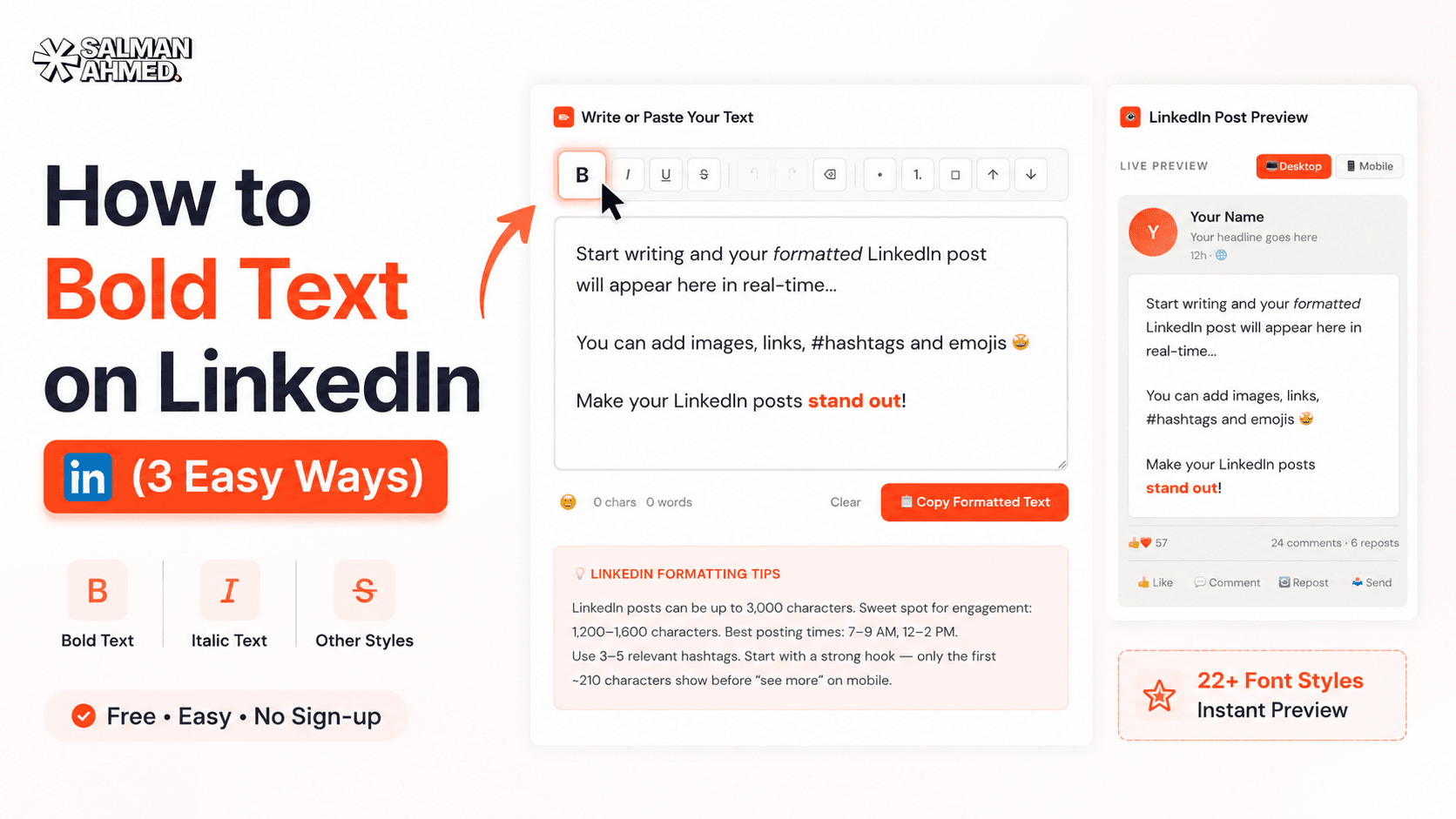
How to Bold Text on LinkedIn (3 Easy Ways)
How to bold text on LinkedIn posts, headlines & comments — the free formatter method, manual Unicode, and why Word doesn't work. Plus the mistakes that hurt your reach.
6 min read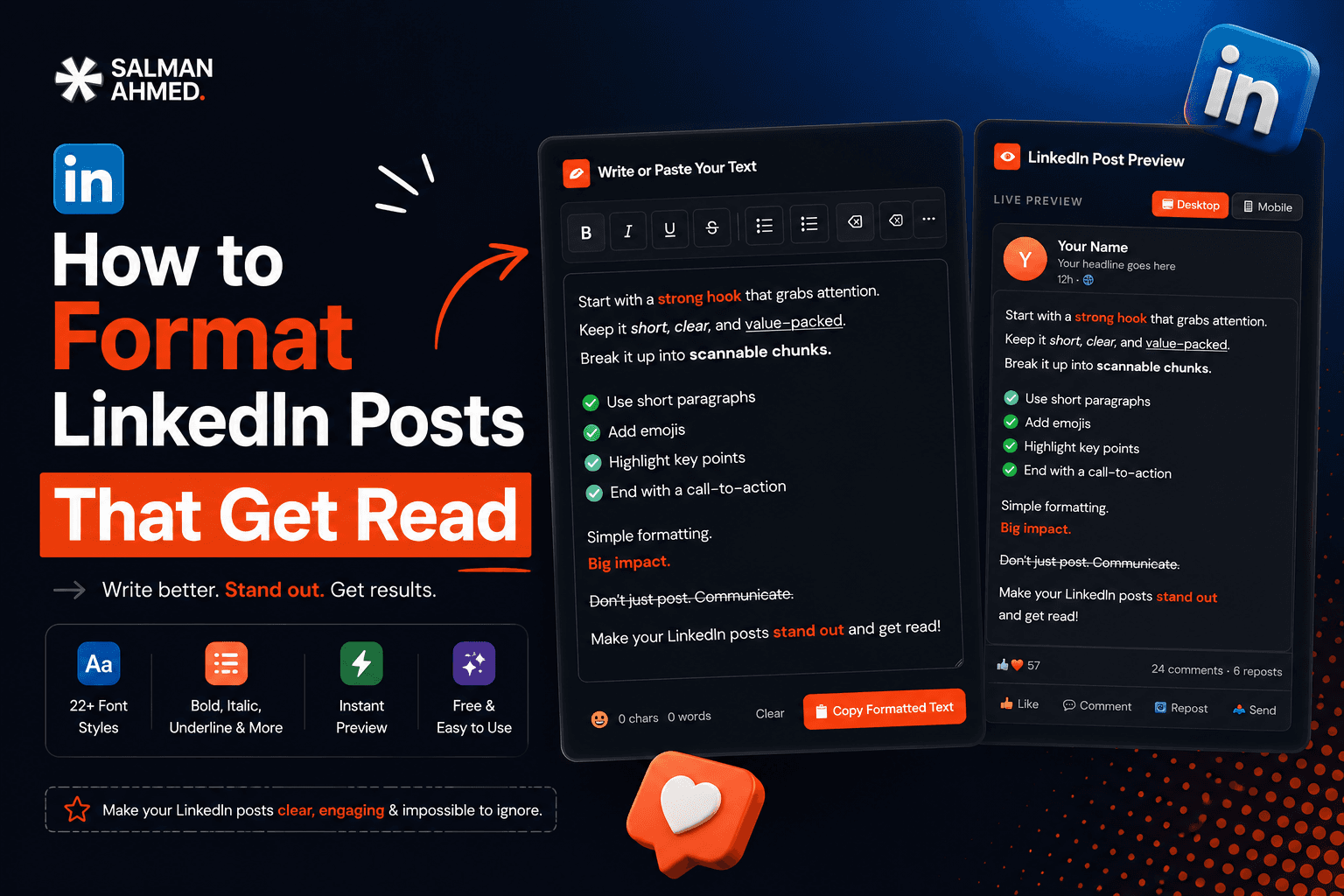 LinkedIn
How to Format LinkedIn Posts That Get Read
How to format LinkedIn posts for maximum readability — the ~210-character hook window, whitespace, Unicode bold, bullets, hashtags & a before/after example. Free tool included.
7 min readFrequently Asked Questions
What is a LinkedIn post preview?
It's a realistic mockup of how your post will appear in the LinkedIn feed — profile, text, the “…see more” cut, image and reactions — so you can check and fix it before publishing.
How many characters show before “see more”?
About the first 210 characters on desktop, ~180 on tablet, and ~140 on mobile before LinkedIn collapses the rest behind “…see more.” A paragraph break can cut it even earlier.
Can I add my own photo and an image to the post?
Yes — upload a profile photo and attach a post image, set your name, headline, timestamp and a verified badge. Everything renders in the preview.
Can I download the preview?
Yes — click “Download PNG” to save the rendered preview as an image you can share or keep. Everything stays in your browser.
Does it show desktop and mobile?
Yes — toggle between desktop, tablet and mobile, each with the correct width and “…see more” cutoff.
Is this LinkedIn post preview tool free?
Yes — 100% free, no sign-up, no limits. Your text and images never leave your browser.
More free tools
Built to help you ship faster — all free, no sign-up.
WordPress Cost Calculator
Answer 5 quick questions and get an instant, honest price range for your WordPress website — built from my real, published pricing. Live estimate, full breakdown, no sign-up.
LinkedIn Text Formatter
Turn plain text into bold, italic, and stylish Unicode fonts that stand out in the LinkedIn feed. Live preview, one-click copy — no sign-up.
LinkedIn Character Counter
Count your text against the real limit for every LinkedIn field — post, headline, About, comment, connection note and more. Live count, over-limit warning, and the “…see more” hook preview. No sign-up.
LinkedIn Hashtag Generator
Enter a topic or paste your post and get relevant LinkedIn hashtags grouped by reach — mix broad and niche for the best of both. One-click copy, no sign-up.
Sticky Notes for Chrome
Drop draggable sticky notes on top of any webpage — like real Post-its for your browser. Notes persist between sessions and stay out of your way.

Need a website that works as hard as this tool?
I build fast, conversion-focused WordPress sites that turn visitors into clients. If this free tool helped, let's build something for your business.