

Changing a Shopify theme does not delete the products, collections, pages, blog posts or menus stored in your Shopify admin. The risk is in how the new theme displays them: its templates, section settings, app integrations and custom code can differ. Prepare and test an unpublished copy before you replace the live design.
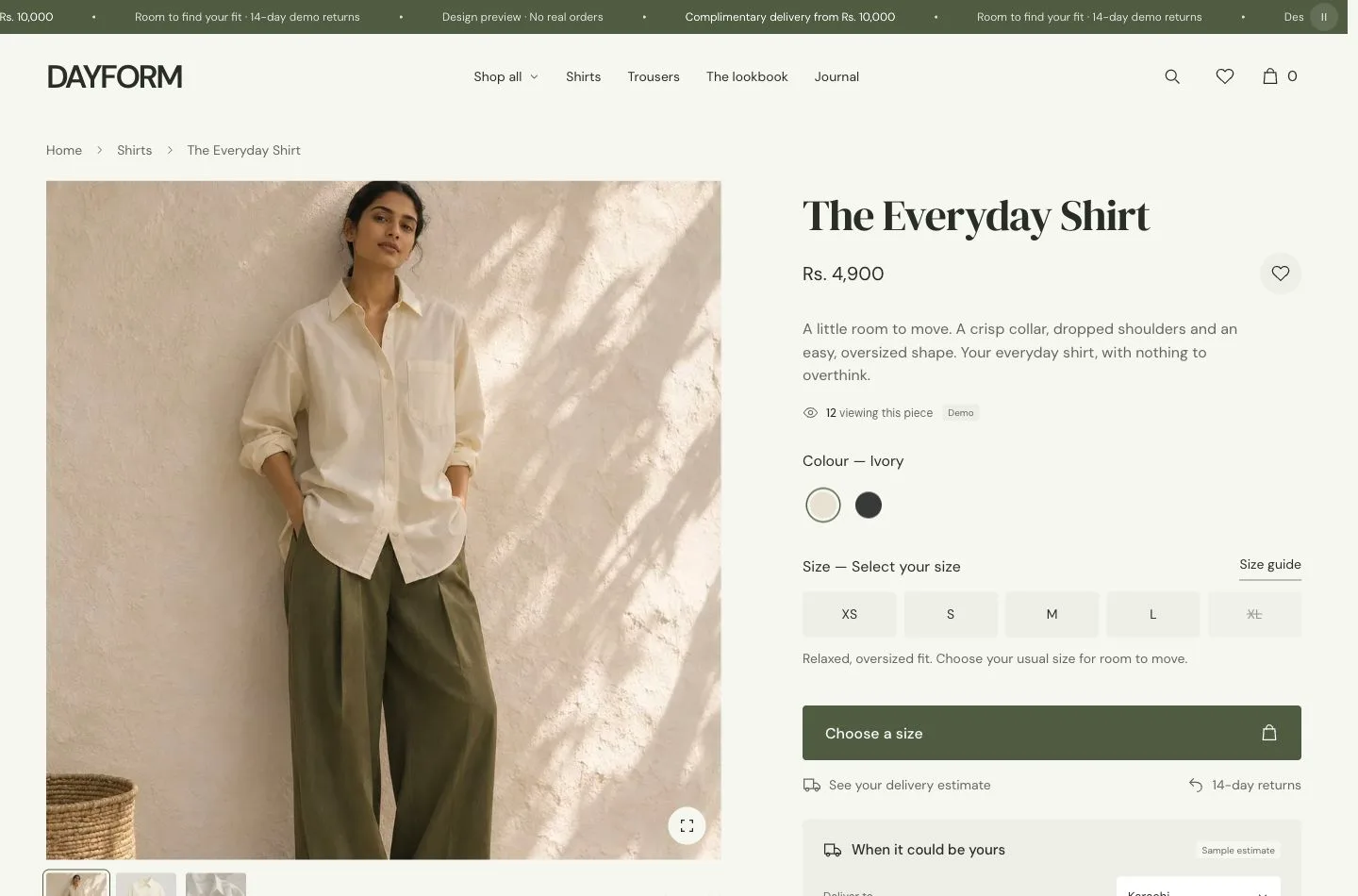
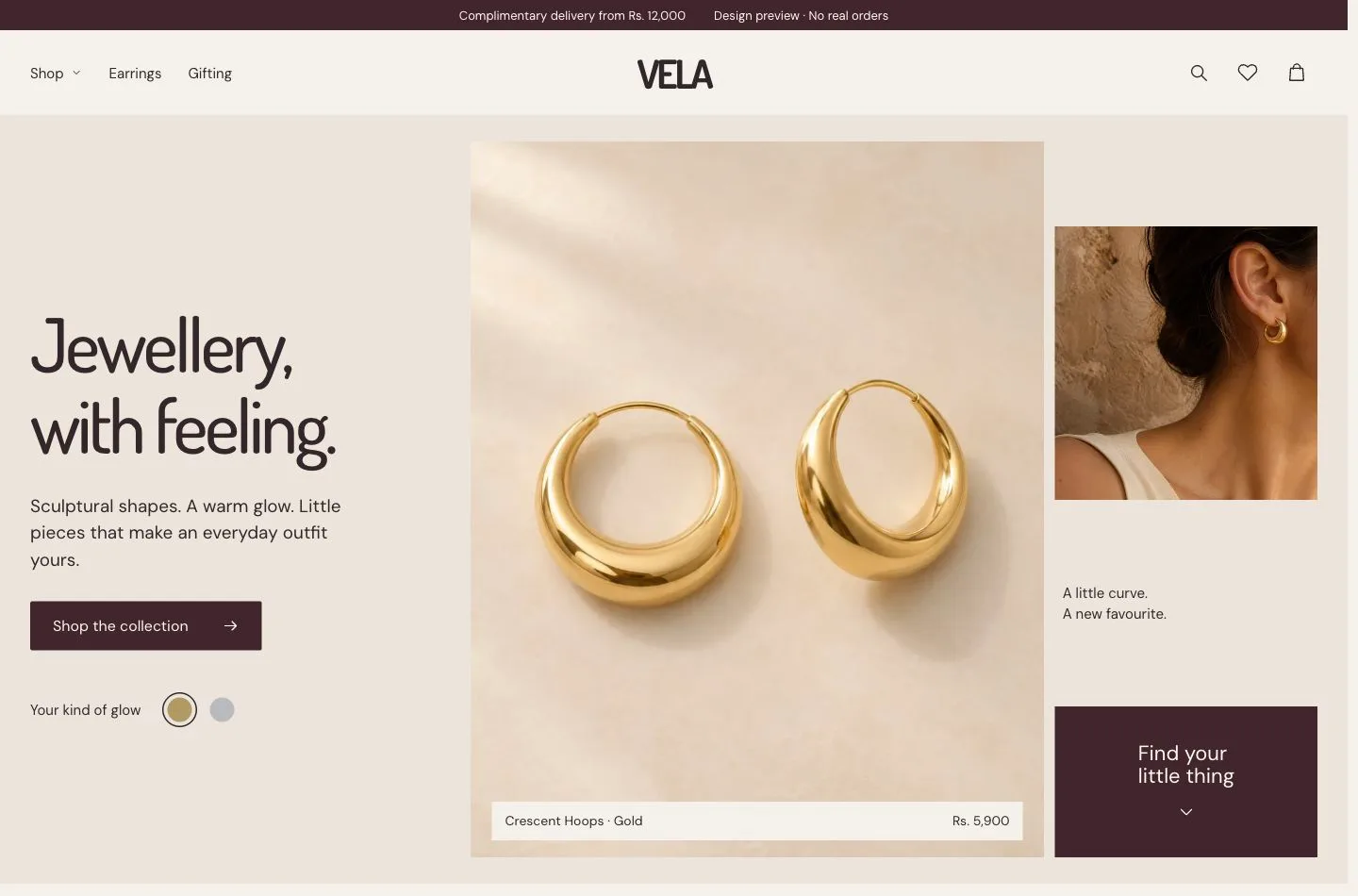
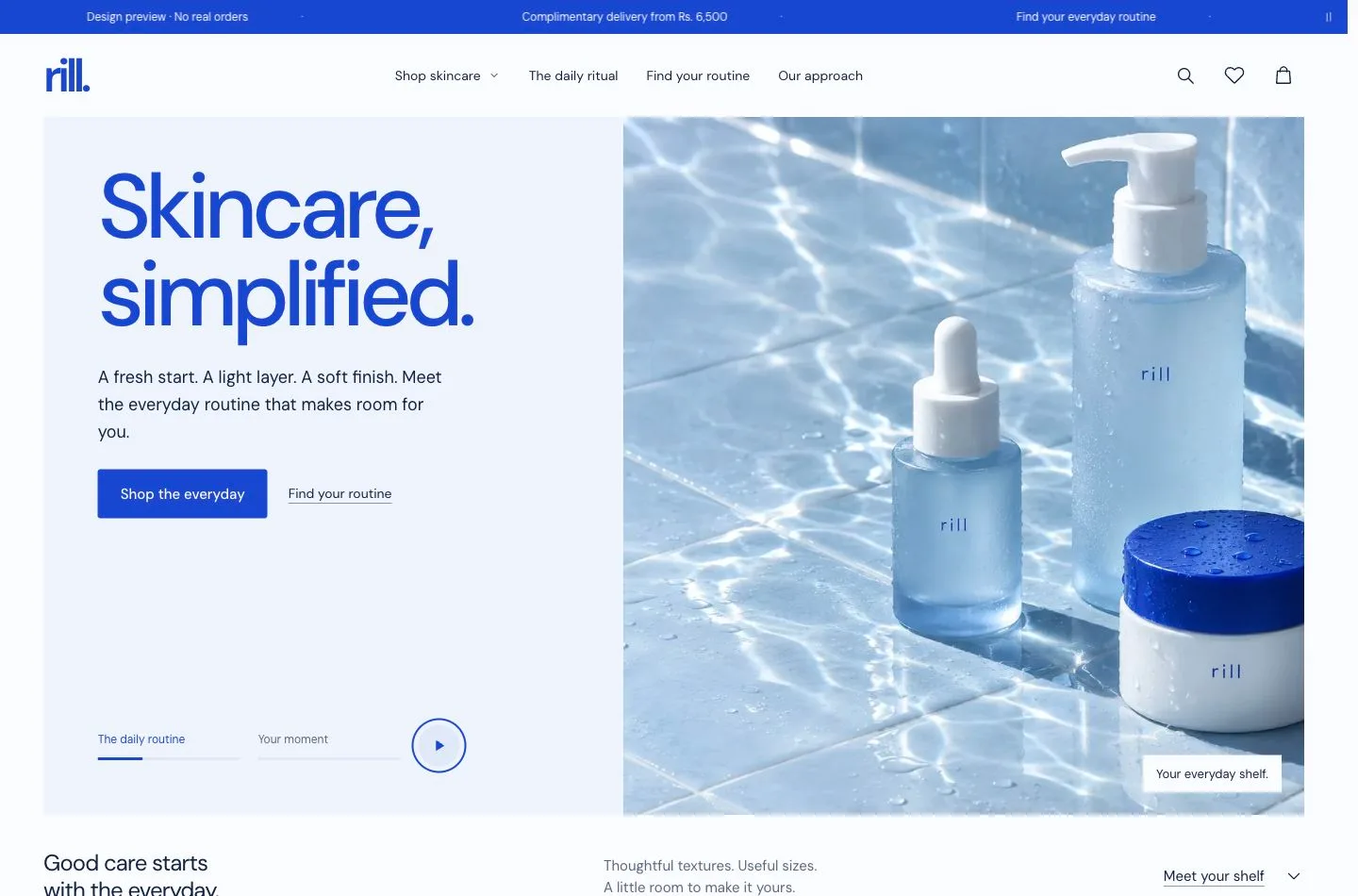
I use that separation when developing DAYFORM, VELA and RILL: work in a dedicated development store, keep the previous version, and review the buyer’s install package separately from the design prototype. The checklist below applies to a merchant’s theme change. I also sell these themes; the instructions are useful whichever theme you choose.
Know what carries over
Shopify distinguishes store content from theme-specific settings in its switching themes documentation. Your catalogue and pages remain in the admin. Section layouts, theme settings, wording changes, templates and code customisations need review in the new theme.
On a small screen, swipe the table sideways to see every column.
| Area | What to check |
|---|---|
| Products and collections | Content remains, but confirm template assignments, images, variants and collection links. |
| Menus and pages | Reconnect menus to the new header/footer and check which page templates exist. |
| Homepage sections | Rebuild the intended layout with the new theme’s sections and settings. |
| Apps and custom code | Check app blocks, embeds, scripts and compatibility individually. |
| Shipping and checkout | Confirm the complete journey and real rates; theme copy is not shipping configuration. |
“My content still exists” and “my new storefront displays it correctly” are different acceptance checks. An assigned custom template missing from the new theme is a useful example: inspect the affected products and pages rather than assuming the homepage preview proves everything works.
Save a usable rollback
Duplicate the published theme before work starts and name the copy with a date and a recognisable release name. Download an archive too if that is part of your backup process. Shopify’s duplication guide explains the admin action and makes an important distinction: a downloaded theme is not a backup of your store’s catalogue and other content.
Keep a separate record of changes outside the theme: products, navigation, app configuration, redirects and shipping rules. Re-publishing an earlier theme will not undo those changes. Export or back up the relevant store data before a migration that edits it.
Take screenshots of your important pages and note their current URLs. Include a popular product, a complicated product, a collection, a content page, the cart and search results. These become your comparison set instead of relying on memory.
Prepare the unpublished theme
Add the new theme through Online Store → Themes. For a direct purchase, upload the install ZIP supplied by the developer, not a larger folder containing documentation and several archives. Leave it unpublished while you configure it.
Connect your logo, navigation, collections, product templates and content. Recreate necessary sections, set desktop and mobile spacing, and replace demonstration copy. Confirm return terms, delivery estimates and any promotional message against your actual business rules.
If you bought one of my themes, the customer setup guide explains the install ZIP, guides and store-registration process. Your purchase code is private; do not paste it into a public page, screenshot or support forum. Registration is separate from configuring products and shipping.
Run a launch checklist
Use the same products and actions before and after the change. Work through this list on a narrow mobile viewport and a desktop, then test on the devices available to you:
- Navigation: header, mobile menu, search, collection filters and footer links reach the correct pages.
- Product: options select the right variant; price, images and availability agree; quantity rules are respected.
- Cart: add, update and remove work; discounts and totals are correct; error messages are understandable.
- Checkout: a labelled test order through the appropriate Shopify test workflow reaches the expected delivery and payment steps. Do not confuse a successful cart with a completed payment.
- Content: fit, dimensions, ingredients, care and policies appear where your products require them.
- Accessibility: menus and dialogs work by keyboard; focus is visible; text and controls remain readable.
- Apps: reviews, subscriptions, consent tools and other required integrations work with this theme and plan.
- Performance: compare representative pages with the same content and app setup. Investigate large images, layout movement and unnecessary scripts.
Keep test transactions and internal visits separate from customer reporting. A successful test order is evidence of that tested path, not a claim that every payment method, country or third-party app has been checked.
Protect existing search traffic
Keep valuable product, collection and page URLs stable wherever possible. A visual redesign alone is not a reason to rename every handle. If a URL must change, map it to its relevant replacement and verify the redirect.
Compare page titles, descriptions, visible headings, canonical URLs, internal links and product structured data. Check that important explanatory text has not disappeared into an image or an unconfigured section. Test both the page that attracts traffic and the next action you want its visitor to take.
After publishing, use Search Console to watch indexing and search performance. Avoid treating a single day’s fluctuation as proof that the theme helped or harmed rankings. Changes in demand, promotions, content and other site work can affect the result.
Publish with a recovery plan
Choose a quieter trading period, keep the previous theme in the library, and have the launch checklist beside you. Publish the reviewed version, then immediately recheck the public store’s main product-to-checkout journey. If a critical issue appears, restore the previous theme and investigate in the draft.
Changing to a different theme is also different from updating the same theme. Shopify’s theme update guide describes its supported update workflow. Independently distributed ZIP updates can require a manual process; follow the developer’s instructions and verify any custom changes rather than copying settings blindly between unrelated themes.
If you want help planning the change, send the current store URL, proposed theme, required apps and affected templates through my Shopify setup and development page. If you are still choosing, compare free and paid themes or preview our three designs before paying for a replacement.