
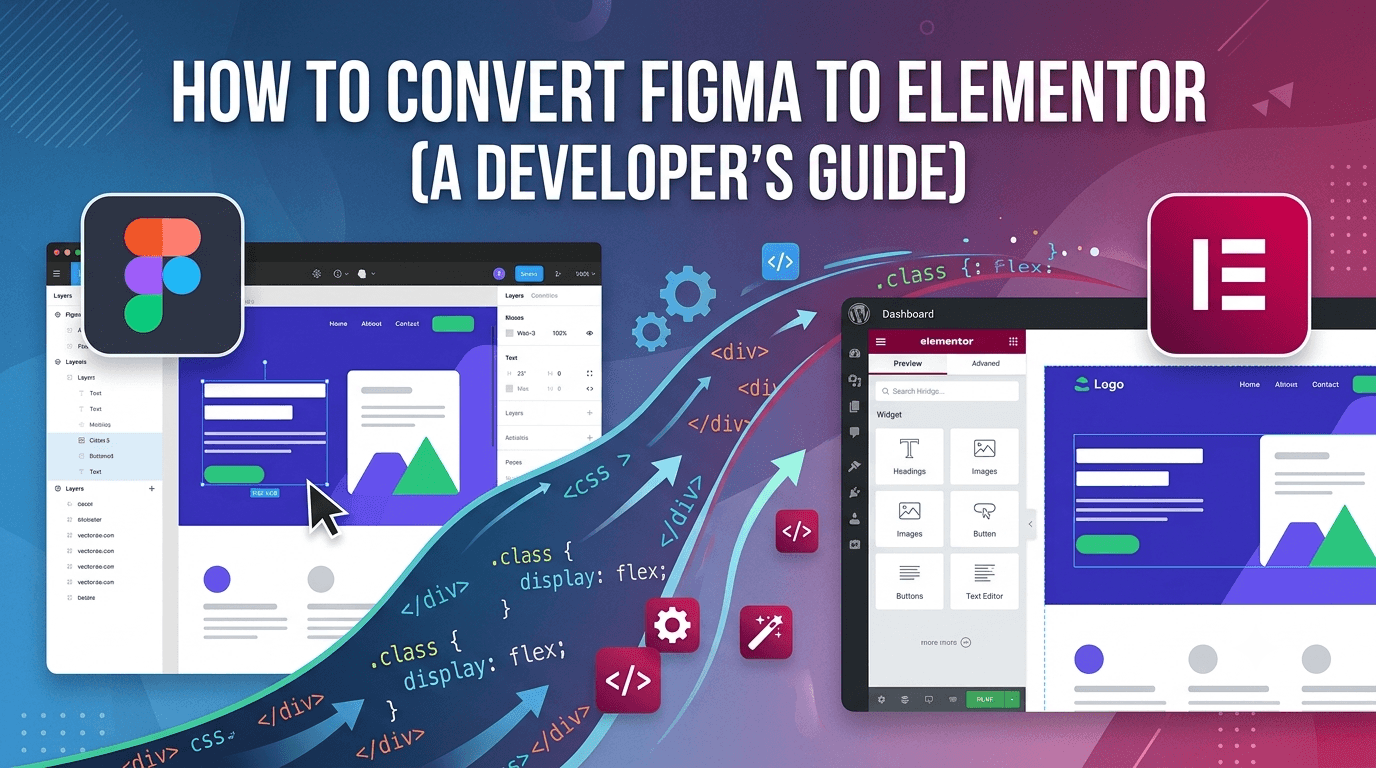

Quick answer: There are three ways to convert a Figma design to Elementor: (1) rebuild it manually in Elementor — the most reliable and what pros use, (2) use a Figma-to-Elementor plugin or AI tool to auto-generate a rough draft you then clean up, or (3) hire a developer. Manual conversion gives pixel-perfect, fast, clean results but takes skill; auto tools are fast but produce bloated markup and break on mobile. Below is the exact manual process I use, plus where the automated tools actually help.
I've converted 30+ Figma designs to Elementor. Here's the honest process.
Hey, I'm Salman — I build WordPress sites for a living, and a big chunk of that is turning Figma designs into live Elementor websites. I've shipped 30+ of these conversions for designers, agencies, and business owners.
Here's the thing most guides won't tell you: the hard part of Figma-to-Elementor isn't dragging widgets onto the canvas. It's breakpoint drift — the reason a conversion looks perfect on desktop and falls apart on a phone. Figma's auto-layout does not map 1:1 to Elementor's flex containers, so if you trust Elementor's responsive presets to "just handle it," you get overlapping text, squished images, and a tablet view nobody signed off on. The fix is boring but reliable: you rebuild every breakpoint by hand. More on that below.
This guide walks the full process — the manual method step by step, an honest look at the plugins and AI tools, best practices, and how long it actually takes.
The 3 Ways to Convert Figma to Elementor
Before the how-to, know your options. There's no single "right" way — it depends on your skill, timeline, and how much quality matters.
| Method | Best for | Quality | Speed |
|---|---|---|---|
| Manual rebuild in Elementor | Pixel-perfect, production sites | Highest — clean, fast, responsive | Slowest (but reliable) |
| Figma-to-Elementor plugin / AI tool | A rough first draft to refine | Low-to-medium — bloated, needs cleanup | Fast to draft, slow to fix |
| Hire a developer | Client work, no time to learn | Highest (if they know breakpoints) | Fastest for you |
My honest take: there is no "one-click" tool that produces a clean, production-ready Elementor site from Figma. The auto-generators are improving, but they output heavy markup that hurts performance and rarely survives contact with real mobile devices. For anything a client or customer will see, manual conversion (or hiring someone who does it manually) wins. Here's how it's done.
How to Convert Figma to Elementor Manually (Step by Step)
Step 1: Prep your Figma file first
Good conversion starts before Elementor. In Figma: make sure the design uses proper auto-layout (so you understand the intended spacing and stacking), define text styles and color styles (these become your Elementor global fonts and colors), and confirm you have the mobile and tablet frames — not just desktop. If the designer only gave you a desktop frame, agree on the responsive behaviour before you build, not after. Export all images and icons at 2x in SVG (icons/logos) or WebP (photos).

Step 2: Set up the Elementor foundation
Don't build a single section until the foundation is right. In Elementor's Site Settings, set your global colors and fonts to match the Figma styles exactly — this is what keeps the whole site consistent and lets you change a brand color in one place later. Use a lightweight theme (Hello Elementor or a blank block theme) so nothing fights your design. Set the content width and default spacing to match the Figma canvas.
Step 3: Build with Containers, section by section
Use Elementor's flexbox containers — not the old section/column structure (it's deprecated and heavier). Work top to bottom, one section at a time: header, hero, then each content block. For each, match the Figma padding, gap, font size, and alignment precisely. Nest containers the way the Figma auto-layout is grouped, and it maps far more cleanly. Reuse global styles instead of hard-coding values on every element.
Step 4: Rebuild every breakpoint by hand (the step that matters)
This is where amateur conversions fall apart. After the desktop build looks perfect, switch to tablet, then mobile, and manually adjust each one — font sizes, padding, container direction (row → column), image sizes, and element order. Do not assume Elementor's responsive defaults will hold; they won't, because Figma auto-layout and Elementor flex resize differently. Check the Figma mobile frame and rebuild to match it. On a 10-section page that's an extra hour or two — and it's the difference between "looks great everywhere" and "looks weird on tablet."
Step 5: Optimize for speed and clean output
A pixel-perfect site that loads in 6 seconds failed. Keep the build lean: don't stack unnecessary containers, serve images in WebP with correct dimensions, preload the hero image, and limit heavy add-on widgets. (I go deep on this in my guide to WordPress speed optimization — the same rules apply to Elementor builds.) A clean manual conversion should still score 90+ on PageSpeed.
Step 6: QA on real devices
Preview isn't enough. Test on an actual phone and tablet, check every breakpoint, click every link and button, and confirm forms work. This is where you catch the last 5% that separates a professional build from a "good enough" one.
Figma to Elementor With Plugins & AI Tools
You'll find tools that promise to auto-convert Figma to Elementor or WordPress — some plugins, some AI-based (and Elementor's own AI features are growing). Here's my honest assessment after testing them: they're genuinely useful for generating a rough first draft or a single section quickly, especially for simple layouts. But they consistently produce bloated, over-nested markup, hard-code values instead of using global styles, and break on mobile — so you spend as long cleaning up as you would have building it right. Use them to speed up a draft if you like, but plan to rebuild the structure and every breakpoint yourself. Treat the output as a starting sketch, never the finished site.
Best Practices & Common Mistakes
The mistakes I see most often in DIY Figma-to-Elementor conversions — and what to do instead:
| Common mistake | Do this instead |
|---|---|
| Trusting Elementor's responsive presets | Rebuild tablet + mobile breakpoints by hand |
| Using old sections/columns | Use flexbox containers (lighter, closer to Figma auto-layout) |
| Hard-coding colors and fonts per element | Set global styles once in Site Settings |
| Exporting huge PNGs from Figma | SVG for icons/logos, WebP for photos, sized correctly |
| Stacking containers & heavy add-ons for effects | Keep the DOM lean so PageSpeed stays 90+ |
| Skipping real-device QA | Test on an actual phone and tablet before launch |
How Long Does a Figma to Elementor Conversion Take?
Realistic timelines from my own projects: a single landing page is about 2–3 days done properly (build + all breakpoints + QA). A full 10-page site is roughly 7–10 days. Automated tools can shave the initial draft time, but the breakpoint and cleanup work — the part that actually determines quality — takes the same effort either way. If a timeline sounds too fast to include manual responsive work, that's usually a sign the breakpoints are being skipped.
DIY or Hire a Developer?
If you're comfortable in Elementor and have the time, the manual process above will get you a clean result — just don't skip Step 4. If it's client work, your time is better spent elsewhere, or you've hit the "looks weird on tablet" wall, that's exactly what I do: pixel-perfect Figma to Elementor conversion with every breakpoint rebuilt by hand, fast and clean. Send me your Figma file and I'll tell you honestly what it'll take — get in touch here.